Root Explorer
Speed SoftwareProductivity
4.04.56K Reviews
- Version
- 4.12.9
- Installs
- 1.00M
- Age Rating
- Everyone
Screenshots
Our Review of Root Explorer
 Analysis by Appyee
I reach for a root file manager when ordinary file browsing stops being enough: perhaps I need to inspect a protected directory, compare two folders, or understand where an app keeps its data. Root Explorer is built for that more hands-on side of Android. It gives experienced users access to areas that standard file managers keep out of reach, but that access is useful only when you know why you’re opening a file and what a change could affect.
That makes this a specialist productivity app, not an essential download for every Android owner. I’d consider it when I already have a rooted device and a specific reason to work with its file system. If I only want to sort photos, move downloads, or clear out ordinary folders, a conventional file manager is simpler and carries less risk.
Speed expectations: quick navigation, deliberate work
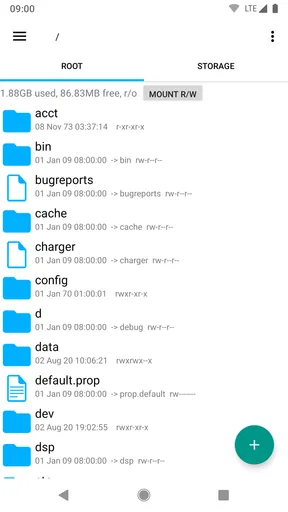
Speed here is less about flashy animations and more about getting to the right location without wrestling with the interface. The file manager layout, breadcrumb trail, and multiple tabs are useful when I’m moving between folders. Rather than backing out repeatedly, I can keep one location open while checking another. That is a practical time-saver during a comparison or a careful cleanup.
Root Explorer is made by Speed Software, and its current version is 4.12.9. It costs $4.99, so I’d want more from it than a familiar browsing screen. The value depends on whether I regularly use its root-level access, text editor, database viewer, and connected storage options. For occasional everyday file transfers, paying for a specialist tool may be hard to justify.
When the file system gets busy
A useful workflow is to open the source and destination in separate tabs before moving anything. I can check the folder names and contents on both sides first, which lowers the chance of copying the wrong item into a system location. For configuration work, I’d inspect a file before editing it and make a separate copy where appropriate. That extra pause matters more than shaving a few taps off the process.
The text editor and SQLite viewer also make the app more useful for troubleshooting than a basic file browser. They let me inspect certain files in place instead of immediately reaching for a separate tool. Still, I would not treat that convenience as permission to experiment on important data: a small edit to a configuration file or database can have effects beyond the folder currently on screen.
Reliability and the cost of root access
For ordinary navigation, I find the layout straightforward: the breadcrumb trail helps me keep my bearings, and tabs make multi-folder tasks easier to follow. Root access is the bigger reliability question. The app can expose files that Android normally protects, but it cannot make a risky edit safe. I’d use it to inspect first, make one change at a time, and avoid deleting or rewriting files whose purpose I don’t understand.
Rooting itself is also a real threshold, not a setup step I’d recommend casually. If a device is not rooted, this app is not a shortcut around that requirement. Someone who depends on a phone for work or has no comfortable recovery plan should think carefully before rooting or changing protected files. A standard file manager is the better fit when the task does not genuinely require elevated access.
Getting Started with Root Explorer
First off, let me tell you, installing Root Explorer is a breeze, but you do need a rooted device. I repeat—rooted! If your device isn’t rooted yet, you’ll need to handle that first. Once you’re all set, hop onto the Play Store, download the app, and you’re good to go.
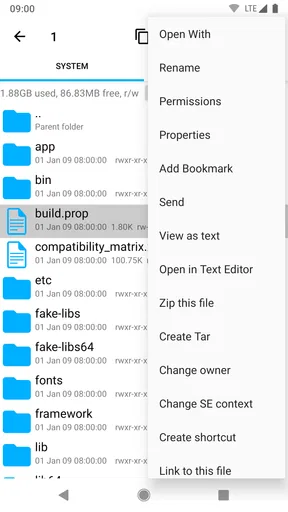
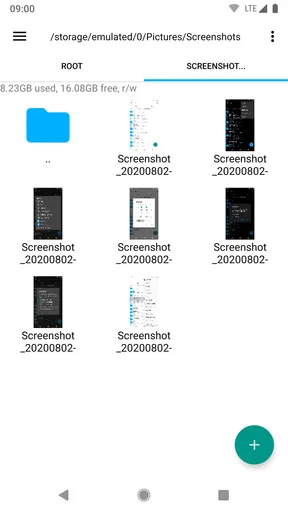
Opening the app for the first time feels like unlocking a vault. The interface is simple, yet functional, making it easy for even the least tech-savvy amongst us to navigate. You’re greeted with a straightforward file manager, but with a twist—you have access to the entire file system, which is usually hidden from regular users.
Features That Stand Out
The features in Root Explorer are truly what sets it apart. Here’s a quick rundown of what caught my eye:
- Full File System Access: You can dive into the system directories and files that are normally off-limits.
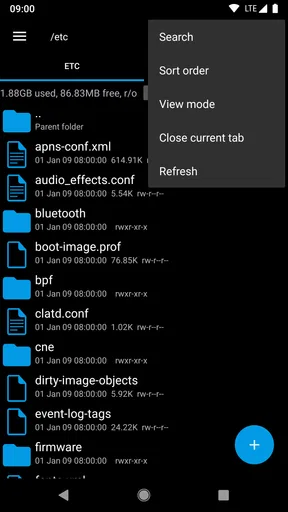
- Multiple Tabs: This feature is a lifesaver if you’re juggling between multiple directories. It’s like having several windows open on your desktop.
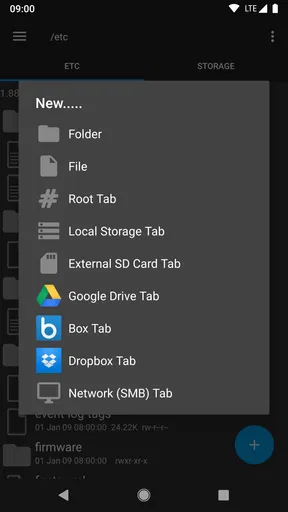
- Cloud Storage Integration: Seamlessly connect with Google Drive, Dropbox, and more. It’s perfect for syncing your files across devices.
- SQLite Database Viewer: For those who love to get into the nitty-gritty, this feature is invaluable.
- Text Editor: Whether you’re editing configuration files or just jotting down notes, the built-in editor is handy.
Each of these features works smoothly, contributing to a seamless user experience. The app also supports a wide range of file formats, so you’re not left in a lurch when trying to open something obscure.
User Experience and Interface
Let’s talk about the user experience. The interface of Root Explorer is clean and intuitive. You won’t find any unnecessary clutter here. The navigation is straightforward, with a handy breadcrumb trail at the top to help you keep track of where you are in the file system. It’s these little touches that make the app feel polished.
One of the things I appreciate most is the app’s stability. It doesn’t crash or lag, which is crucial when you’re dealing with important system files. Plus, the dark theme is a nice touch for those late-night file management sessions.
Device fit, everyday use, and alternatives
A realistic use case is checking why a rooted phone’s app is behaving oddly after I’ve changed a setting. I could use the tabs to keep the relevant app folder and a separate reference folder in view, inspect a database with the viewer, then decide whether any file needs attention. I’d avoid making several edits at once: changing one item and checking the result makes it much easier to spot what caused a problem.
Cloud connections are handy for moving a file between a phone and a familiar storage account, but I would not confuse that with a backup plan for system changes. Before editing something important, I’d keep a separate copy in a location I can find later. A cloud copy can help preserve a file, but it does not guarantee that a modified system will remain usable or that the file is suitable to restore without care.
Compared with the usual file managers, the difference is access and responsibility. A standard manager is the better choice for browsing media, organizing downloads, and moving personal documents without touching protected areas. Root Explorer makes sense when those limits are the obstacle. Its tabs and built-in inspection tools also reduce switching between apps, though someone who already relies on dedicated database or text-editing software may prefer those tools for deeper work.
It is rated for Everyone, but that age label should not be mistaken for a signal that system-level changes are beginner-safe. I’d describe the practical audience as people who understand rooting and can identify the files they mean to inspect. If you’re new to Android file systems, start with ordinary folders and learn the layout before changing anything protected. The app is not the right fit for someone who wants automatic cleanup or a guided fix for phone problems.
The app requires Android 5.0 or later. That makes the operating-system requirement clear, but the important compatibility question is still whether the device is rooted and whether its root setup allows the access needed for the task. Installing it on an unrooted phone does not turn it into a regular file manager with the same purpose; I’d choose a standard alternative instead of rooting solely to browse files.
It has an average rating of 4.0 from around 32,000 ratings, with roughly 4,600 written reviews and over one million installs. I take that as evidence that it has an established audience, not proof that every device or workflow will behave the same way. The right question for me is whether I need its particular combination of root browsing and inspection tools often enough to make the cost worthwhile.
Why Root Explorer is Worth It
At this point, you might be wondering if Root Explorer is worth the investment. In my opinion, it’s a resounding yes. For anyone with a rooted device, the control and accessibility it provides are unparalleled. It’s not just about accessing files; it’s about having the power to manage your device exactly how you want.
Whether you’re a developer needing access to system files, or just someone who loves tinkering with their device, Root Explorer is a must-have tool. It’s the kind of app that gives you professional-level access, right at your fingertips.
Performance verdict: capable, but not a safety net
For the kind of work it is meant to support, I value a clear path through directories and tools that keep inspection in one place more than I value a speed claim. The app’s restrained file-manager approach suits deliberate tasks: open the right location, check the contents, and act only when the purpose is clear. I would not judge it by how quickly it can make a sweeping change; careful work is the better measure here.
Root Explorer is best for a rooted-device owner who routinely investigates files, edits configuration text, or checks SQLite data and wants tabs and cloud storage within the same workflow. It is a weaker choice for casual organization, for anyone uncomfortable with root permissions, or for a user expecting a guided repair tool. The app can give you access, but the judgment about what to do with that access remains yours.
In conclusion, if you’re rocking a rooted Android device and want to make the most of it, give Root Explorer a try. It’s like having a Swiss Army knife for your file management needs, and once you get the hang of it, you’ll wonder how you ever managed without it.
Verdict
Strengths of Root Explorer
- Intuitive and user-friendly interface.
- Fast access to system files and folders.
- Supports multiple cloud storage services.
- Advanced search function for quick navigation.
- Batch copy, paste, and delete options.
Limitations of Root Explorer
- Limited free features; requires purchase.
- Not suitable for inexperienced users.
- Root access needed for full functionality.
- Occasional crashes on some devices.
- No built-in file encryption feature.
Similar Picks in This Category
View All
Google Calendar
Google LLC4.6

Google Drive
Google LLC4.3

Google Assistant
Google LLC3.9

Microsoft OneDrive
Microsoft Corporation4.6

Samsung Calendar
Samsung Electronics Co., Ltd.4.1

Microsoft OneNote: Save Notes
Microsoft Corporation4.6
Frequently Asked Questions
What is Root Explorer and what are its main features?
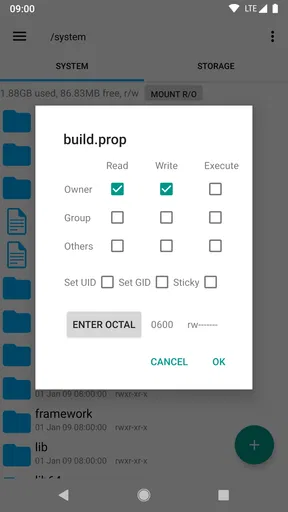
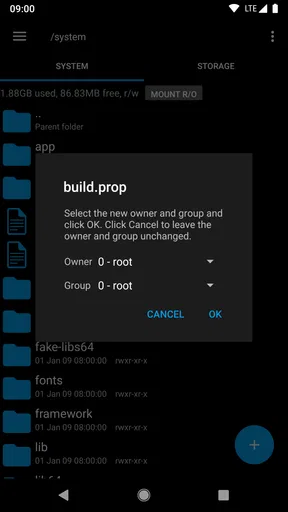
Root Explorer is a powerful file management app for Android devices that allows users to access the entire file system, including the elusive root directory. Its main features include multiple tab support, cloud storage integration, a text editor, and the ability to extract archive files. It also offers permissions management and SQLite database viewers, making it a versatile tool for advanced users.
Is Root Explorer safe to use on my Android device?
Yes, Root Explorer is generally safe to use, provided you have the necessary technical knowledge. It requires root access to function fully, which means it can make significant changes to your device. As long as you download the app from a trusted source and handle root permissions responsibly, it should be safe. However, misuse can lead to system instability.
Do I need root access to use Root Explorer?
Yes, full access to Root Explorer’s features requires root access on your device. Without root access, you will not be able to explore the root directory or utilize some of the app's advanced features. It’s important to note that rooting your device can void warranties and may introduce security risks if not performed correctly.
How does Root Explorer handle cloud storage integration?
Root Explorer supports integration with various cloud storage services, allowing users to manage files stored on Google Drive, Dropbox, and more directly from the app. This feature enables seamless file transfers and synchronization between local and cloud storage, making it easy to manage files across different platforms and devices.
Can I use Root Explorer to edit system files?
Yes, Root Explorer allows users to edit system files, which can be extremely useful for advanced customization. However, modifying system files can be risky if you are not familiar with the processes involved. It’s crucial to back up your data and understand the implications of any changes to avoid compromising your device’s functionality.
